How to Watch Latest Japanese Anime Episode on Amazon FireStick Using a VPN
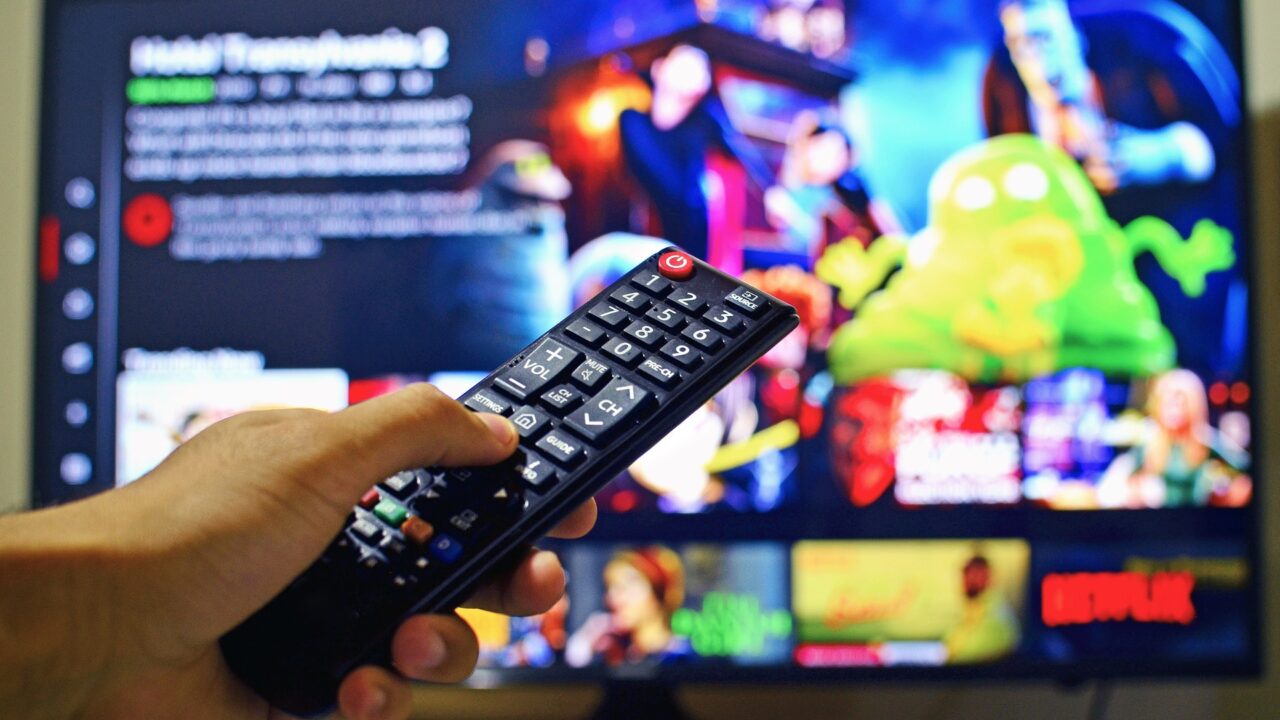
Hello guys! Are you a fan of Japanese anime? I bet you’re always eager to watch the latest episodes as soon as they come out in Japan.
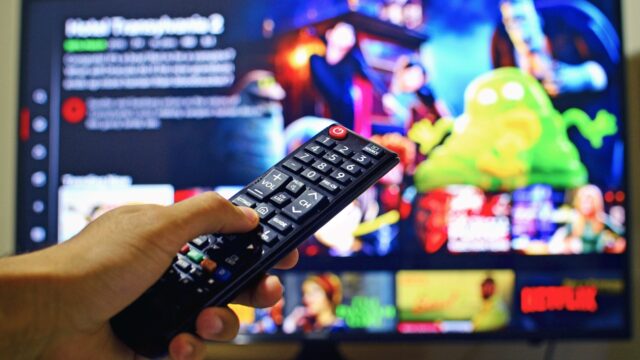
As you may know, if you live outside Japan, anime episodes are often released later on Netflix—or sometimes not released at all. Have you ever felt frustrated when your favorite anime wasn’t available in your country?
Don’t worry! In this article, I’ll show you how to watch Japanese anime at the same time as it’s released in Japan—safely, legally, and without stress.
Here’s the bottom line: You can access Japanese Netflix by using a VPN with your Amazon FireStick.
Read on to learn: In this article, it would be explained regards to method, to watch Japanese anime with safety, legally and stress-free.
You can get the information below if you read this article.
- How to Watch the Latest Japanese Anime from Outside Japan
- Step-by-Step Guide to Connecting a VPN on Amazon Fire Stick
- Things to Keep in Mind When Using Amazon Prime
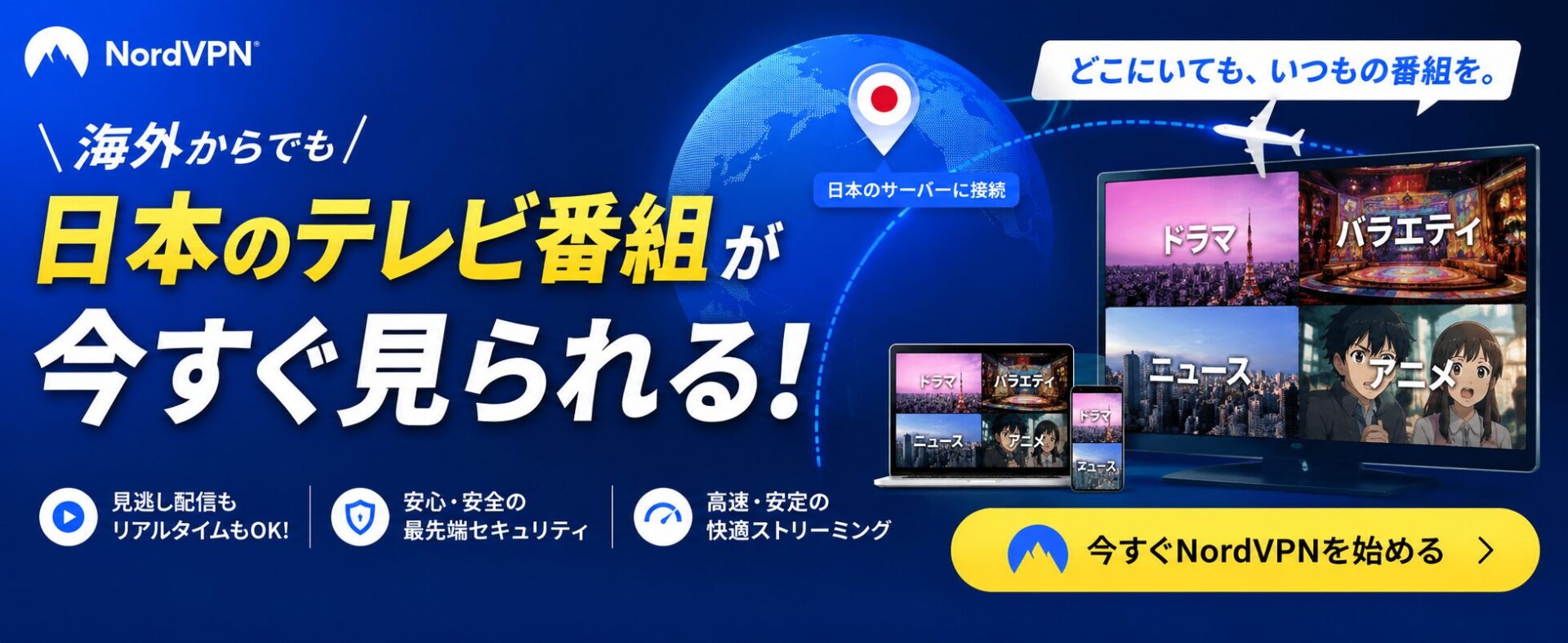
How to Watch the Latest Japanese Anime from Outside Japan
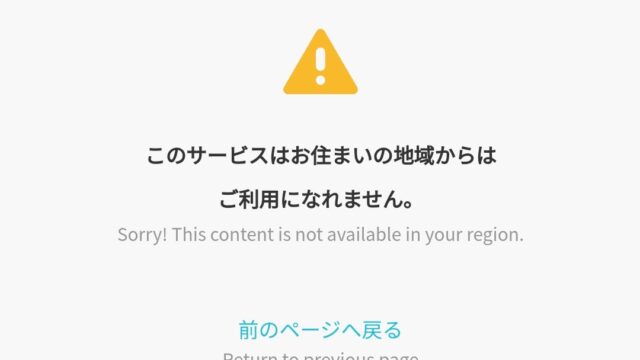
Netflix normally connects you to the version available in the country where you live, so you can’t watch shows that are exclusively available in Japan.
By using a VPN, you can virtually set your network location to Japan. In this way, it appears as if you are accessing Netflix from Japan, allowing you to watch the latest episodes that are only released there.
Step-by-Step Guide to Connecting a VPN on Amazon Fire Stick
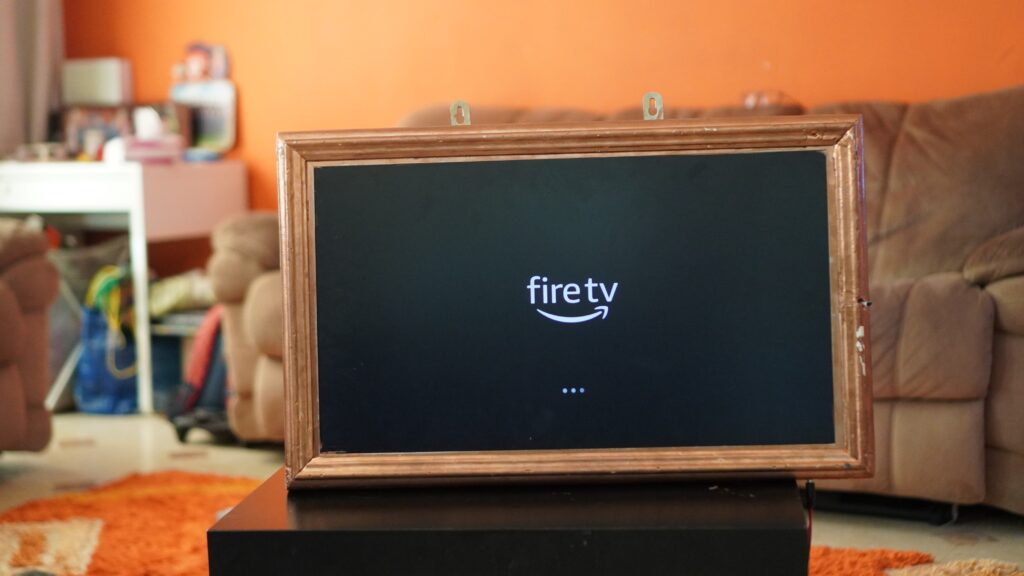
Necessary items
- A TV with an HDMI port
- Amazon Fire Stick
Note: Outlet shapes vary by region, so be sure to use the correct plug for your area. - User account of Amazon
- User account of VPN service (This article uses NordVPN as an example.)
- An active Internet connection
- PC, Smart Phone or Tablet with Internet access.
How to setup Amazon Fire Stick
The items which is included in Amazon Fire Stick are;
・Fire Stick
・Power Adapter
・Cable from Power Adapter to Fire Stick (USBTypeAーUSB Type miniA)
・Cable from Fire Stick to TV (USBType AーHDMI)
・Controller
・Battery for controller
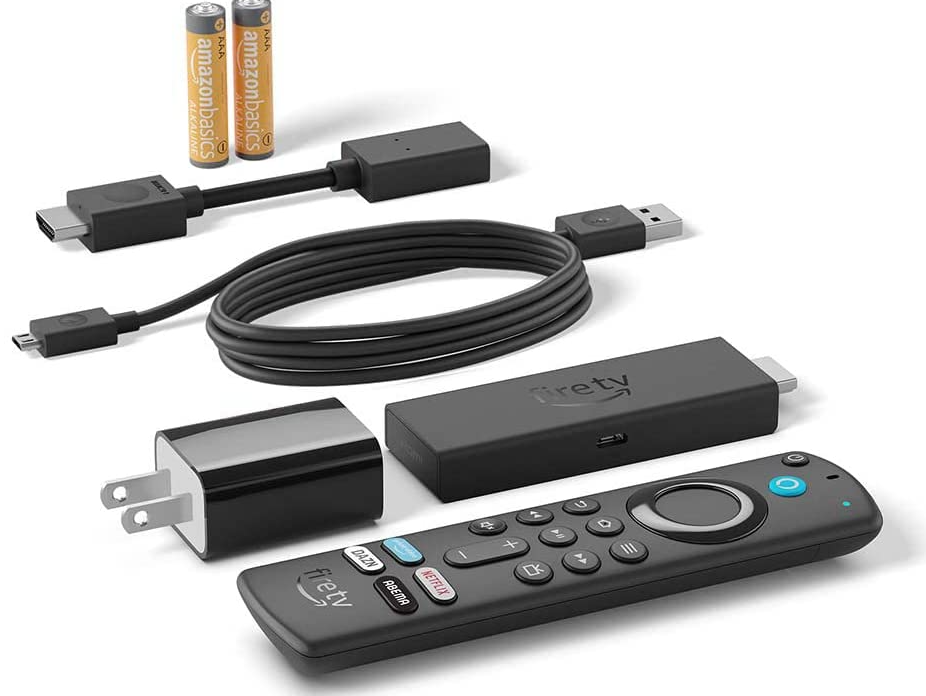
- Connect the power adapter to the cable for connecting the Fire Stick.
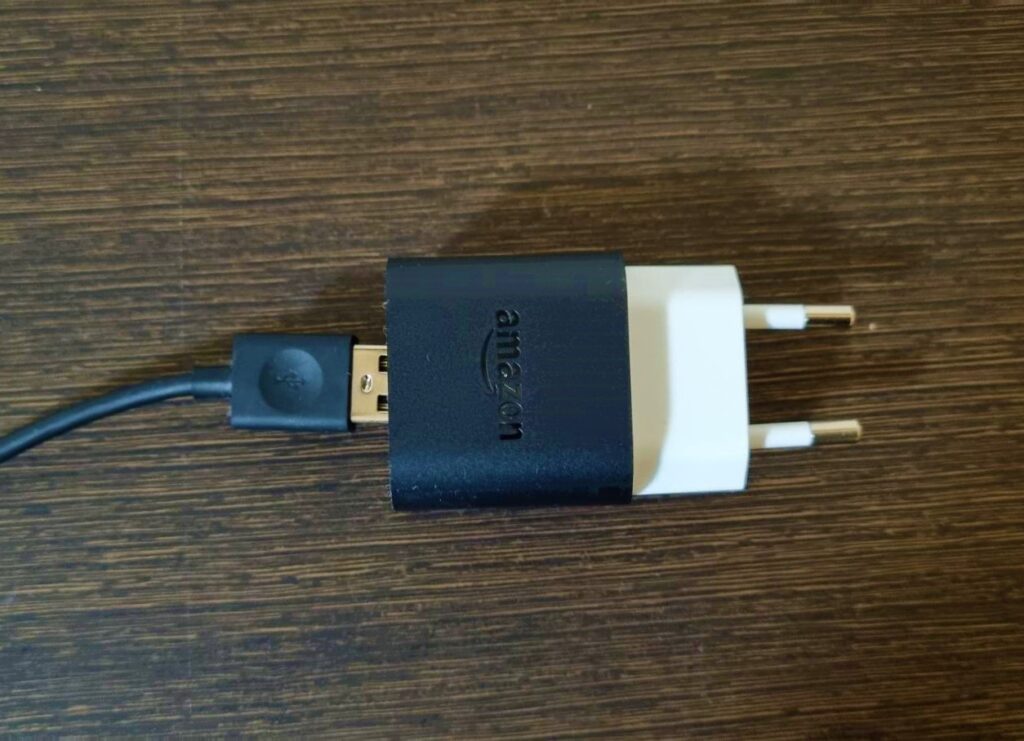
- Plug the power adapter into an outlet.
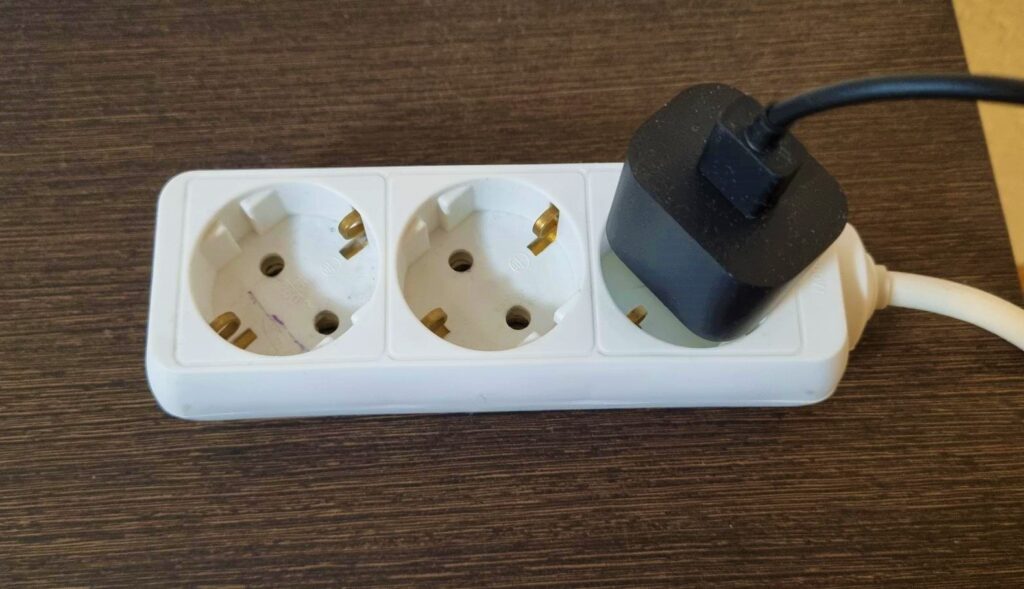
- Connect the power adapter–Fire Stick cable to the Fire Stick.
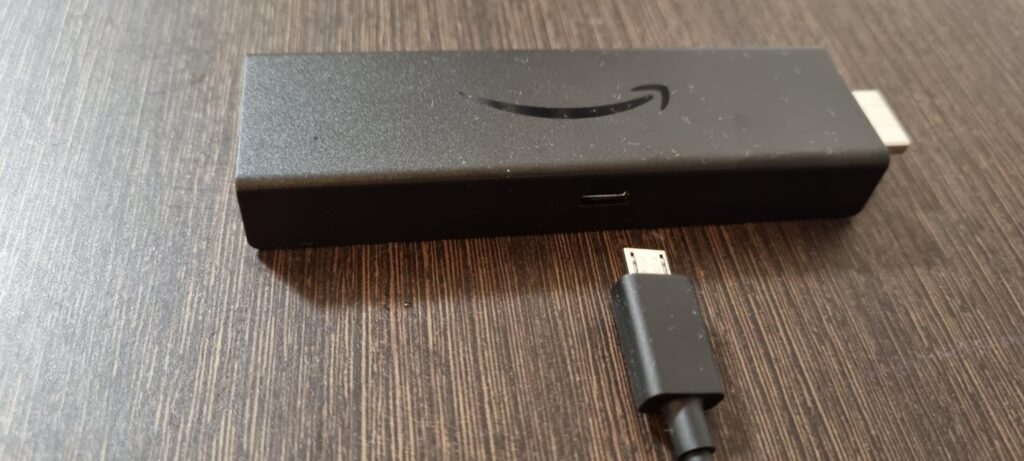
- Connect the Fire Stick to the TV connection cable.
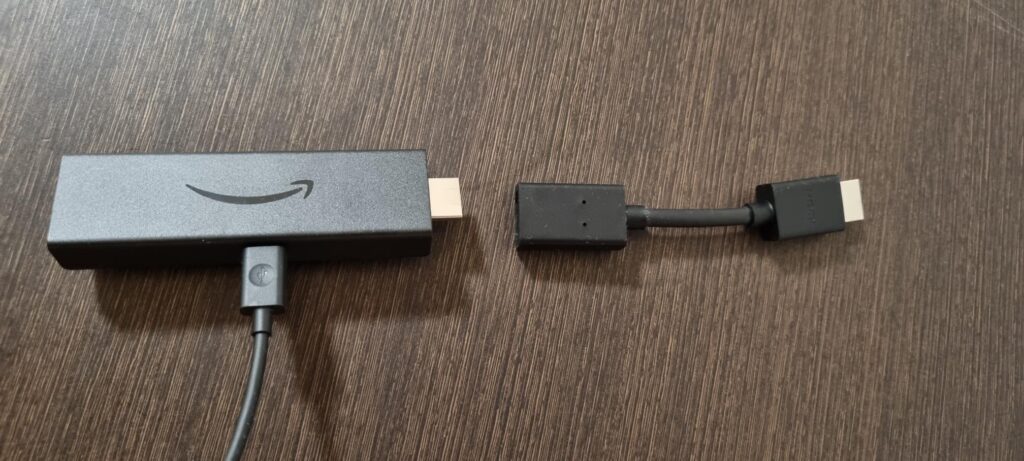
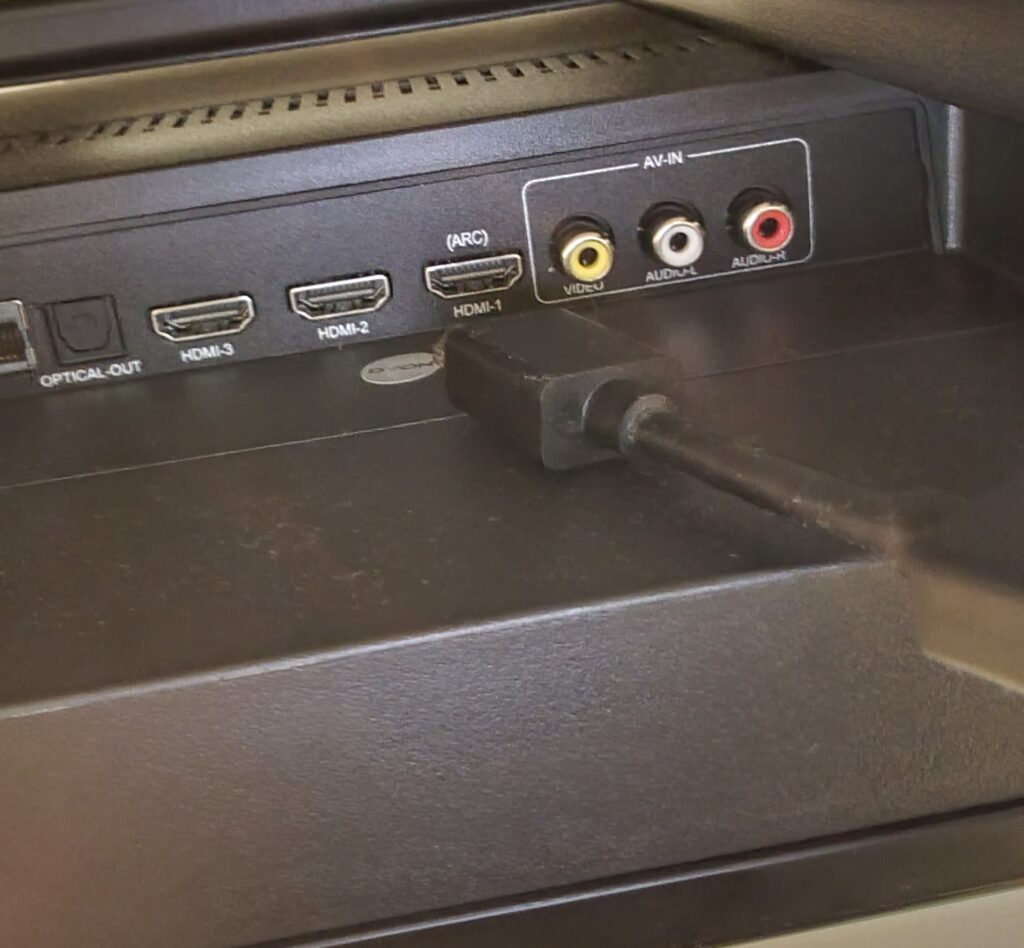
- Connect the TV cable from the Fire Stick to the TV.
Setting of Amazon Fire Stick
Once you power it on, on-screen instructions will appear to guide you to the setup screen. Just follow the instructions to proceed.
- Press and hold the Home button for 10 seconds to pair the remote with the TV.
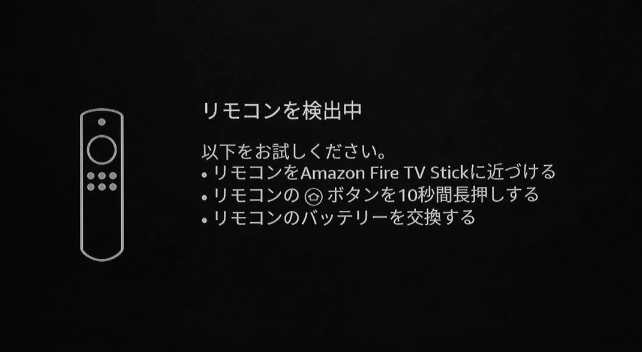
- Wait until a message appears on the screen prompting you to press ○ to get started.
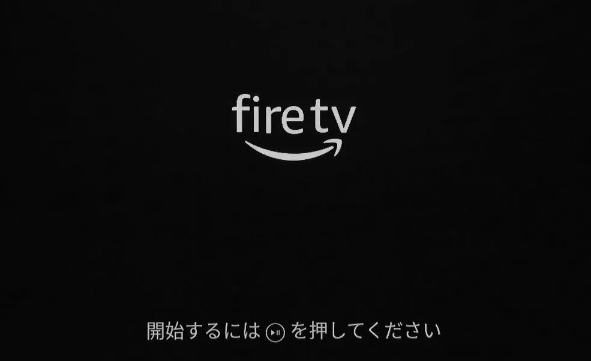
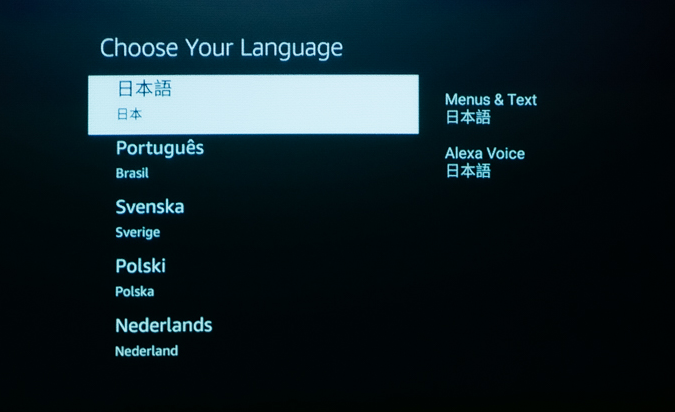
- Select Launguage
- Set up the Wi-Fi connection by selecting your home network and entering the Wi-Fi password.
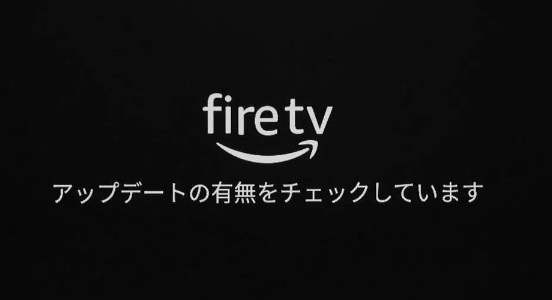
- Once the network connection is complete, the software will automatically update. Please wait until the update finishes.
- Sign in to your Amazon account. On your computer, go to Amazon.com/code and enter the 6-character code displayed on your TV screen to sync your Amazon account with the Fire Stick.
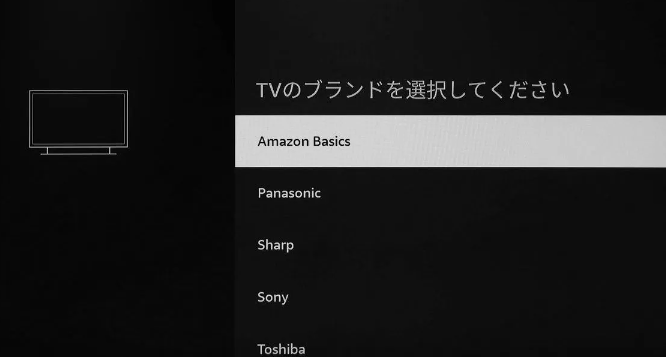
- Set up the remote control. Select your TV’s brand and model, then verify that you can adjust the volume using the Fire Stick remote.
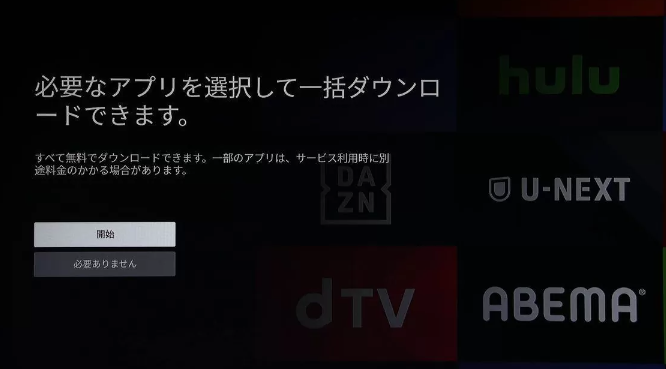
- You can choose to install recommended apps during setup, but since installation may not be possible when accessing from overseas, we will skip this step for now.
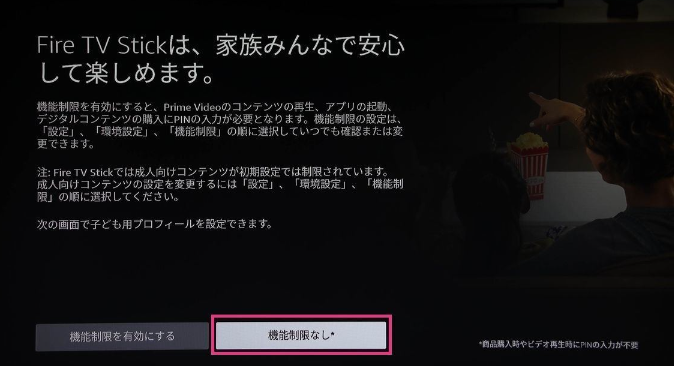
- You can set parental controls for young children, but we will skip this step for now.
The Fire Stick setup is now complete.
Purchase NordVPN
Access to NordVPN
Access the NordVPN website from your computer or smartphone. (The instructions below will be based on a smartphone screen.)
Choose to ”buy NordVPN” on the linked website.
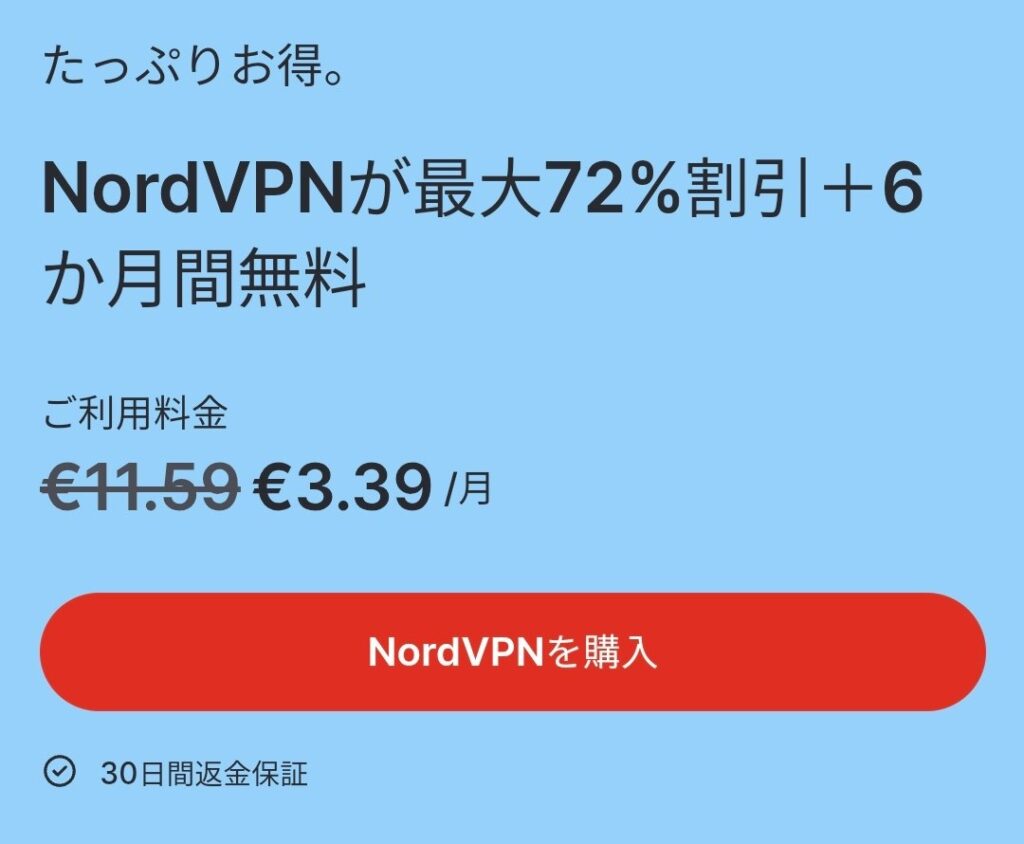
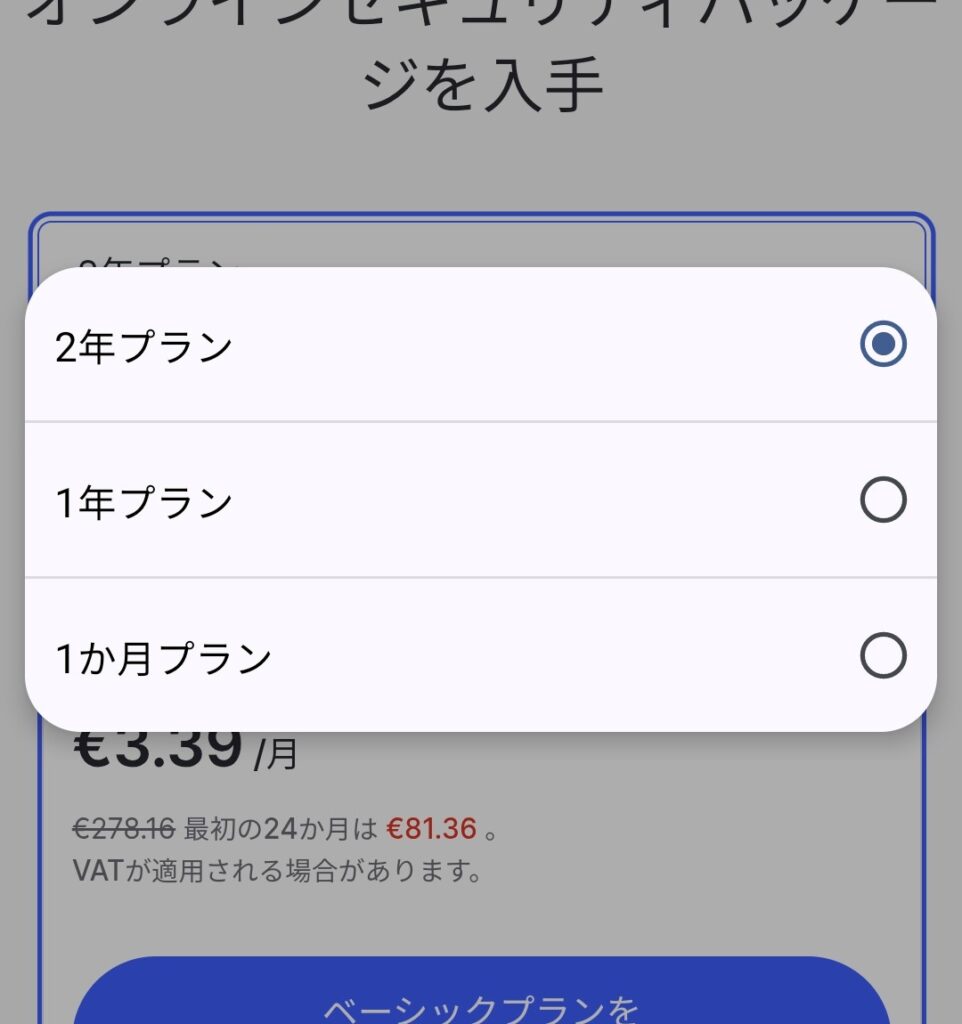
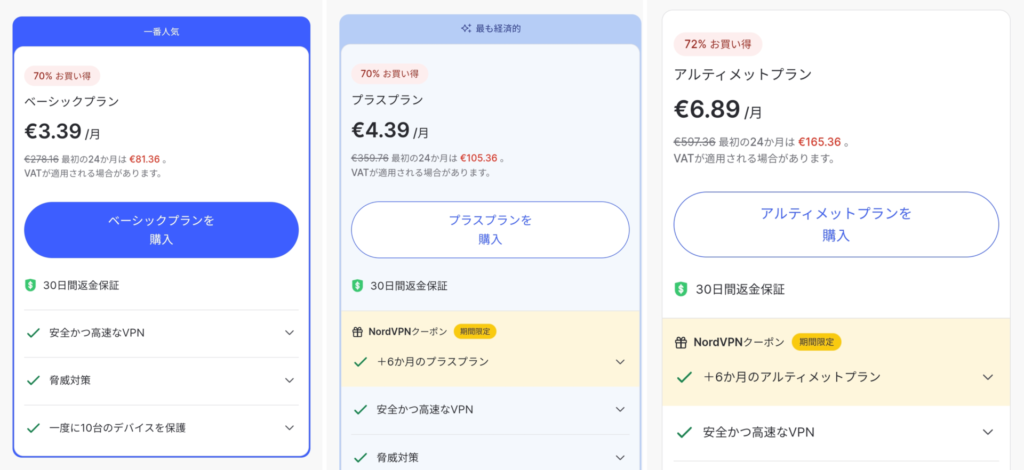
Select the subscription period.
Select a subscription period: 1 month, 1 year, or 2 years. Use the tabs to switch between options. The longer the plan, the better the price—1 year is cheaper than 1 month, and 2 years is cheaper than 1 year.
Select a subscription plan.
Choose from the Complete Plan, Plus Plan, or Basic Plan. The Basic Plan is sufficient for watching Japanese programs. If you want enhanced security or cloud storage, consider subscribing to the Complete or Plus Plan.
Our household uses the Basic Plan and has had no issues at all.
Please note that prices may vary due to promotions or campaigns.
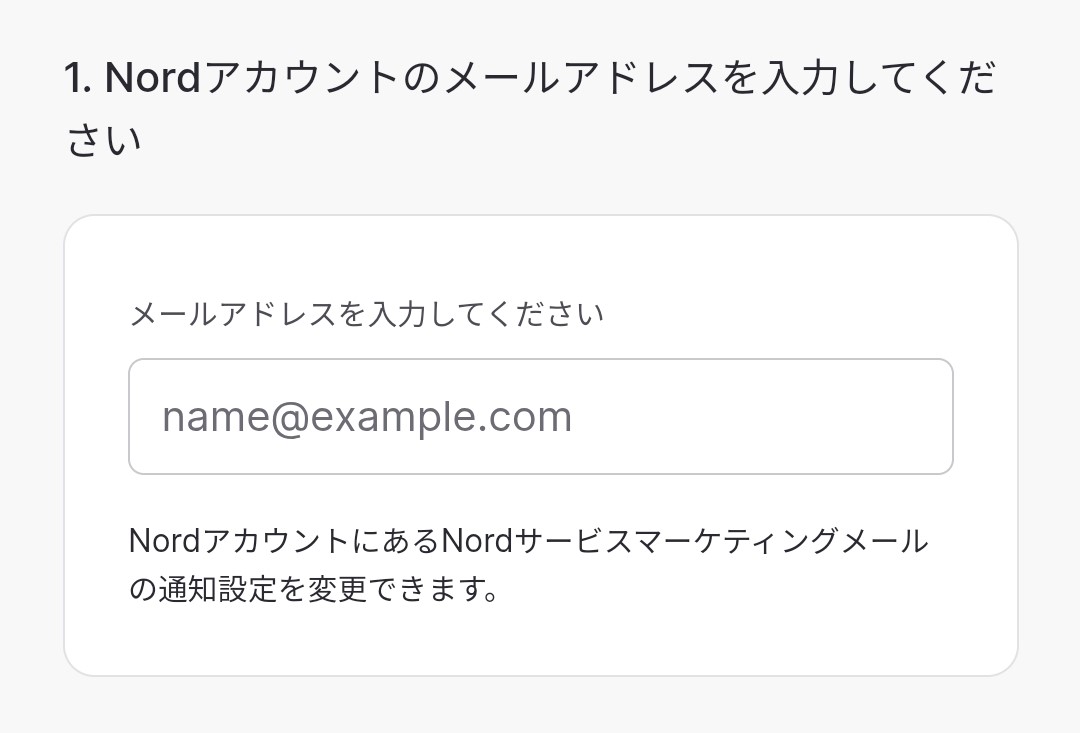
Account Registration and Payment
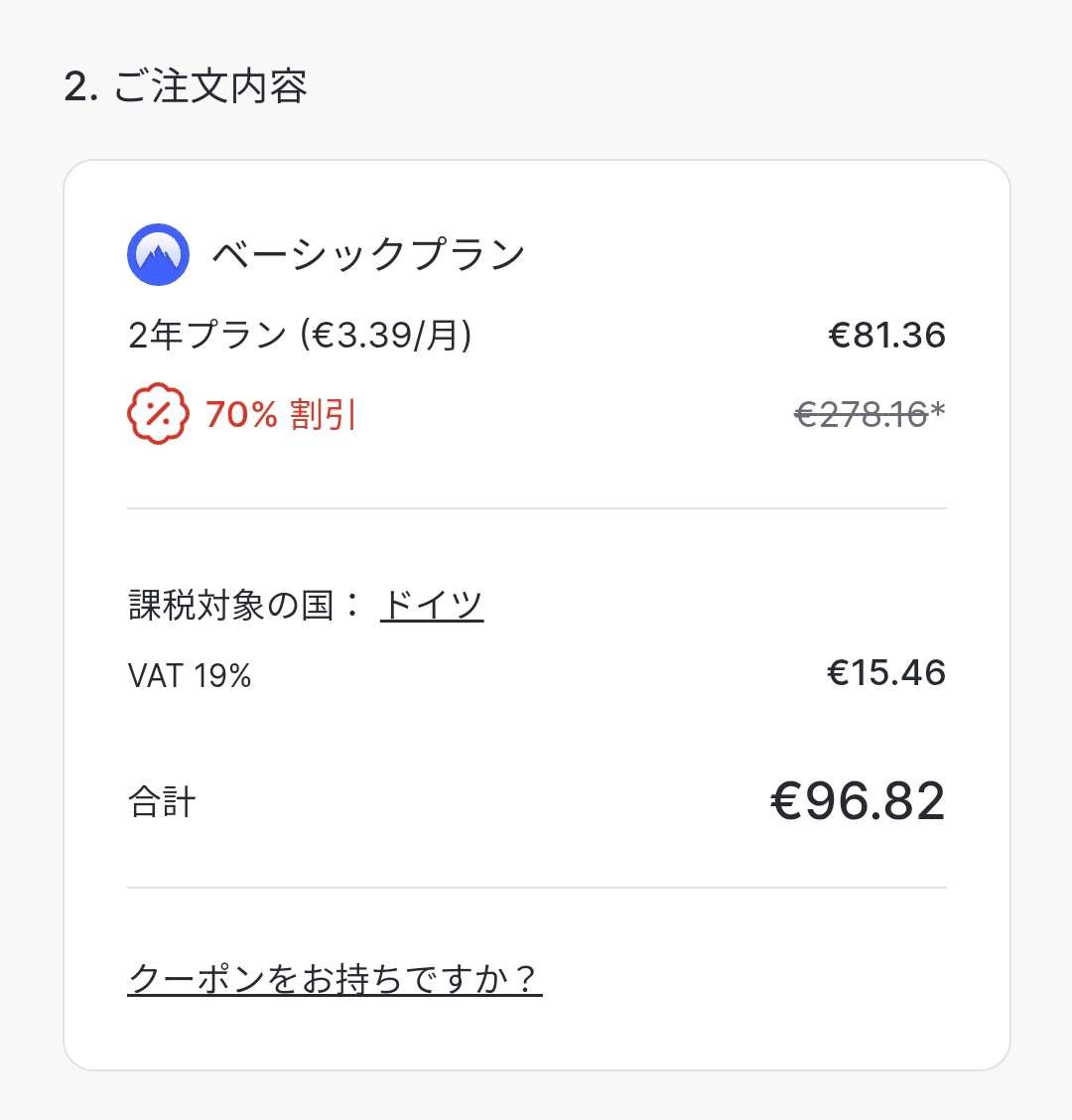
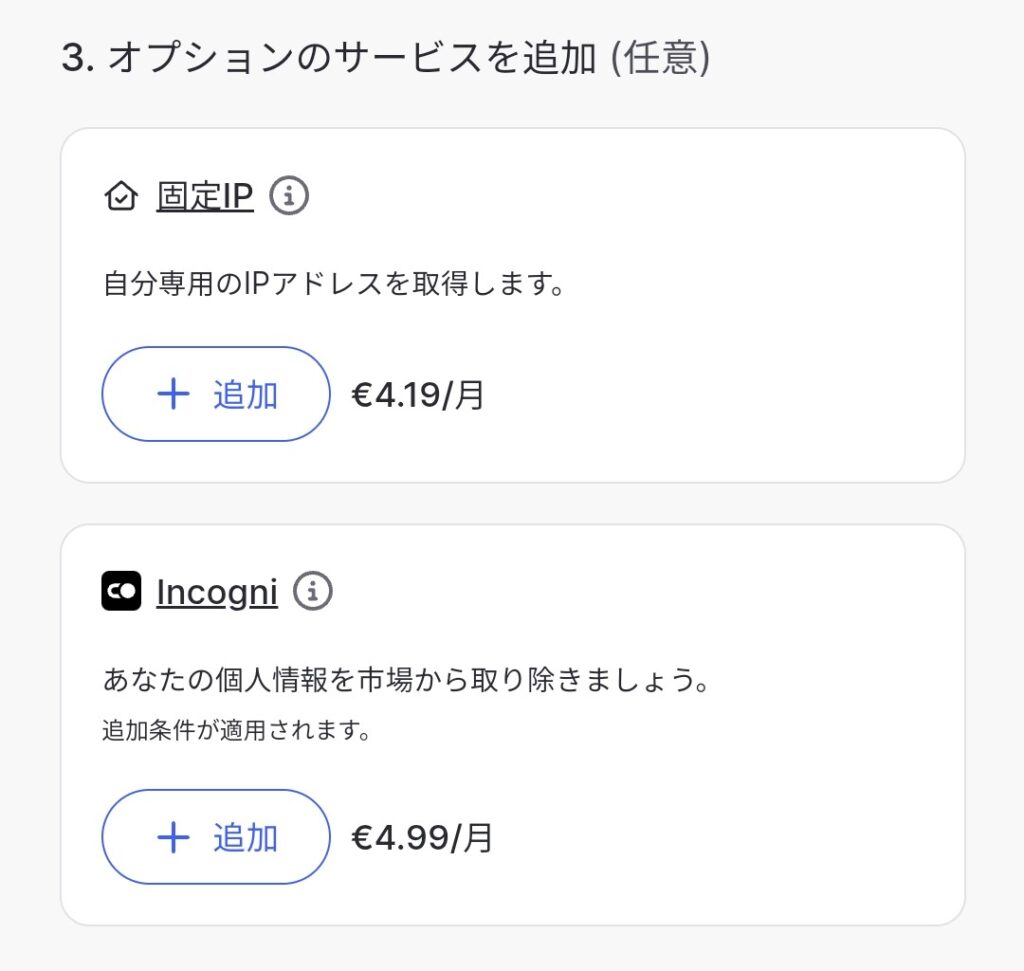
When you make a selection, you will be prompted to enter your account email address, review your order, add optional extras, and choose a payment method. After completing the required information and making the payment, a payment confirmation will be sent to the email address you provided.
You can skip adding any options.
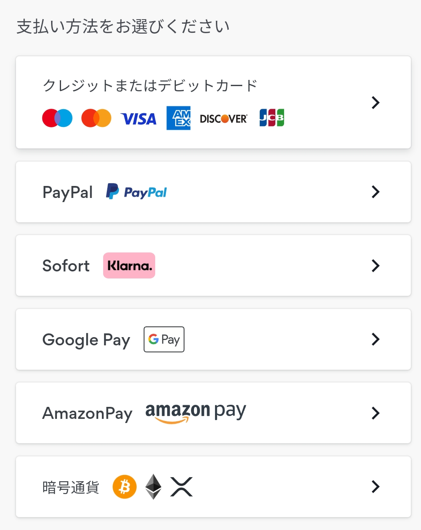
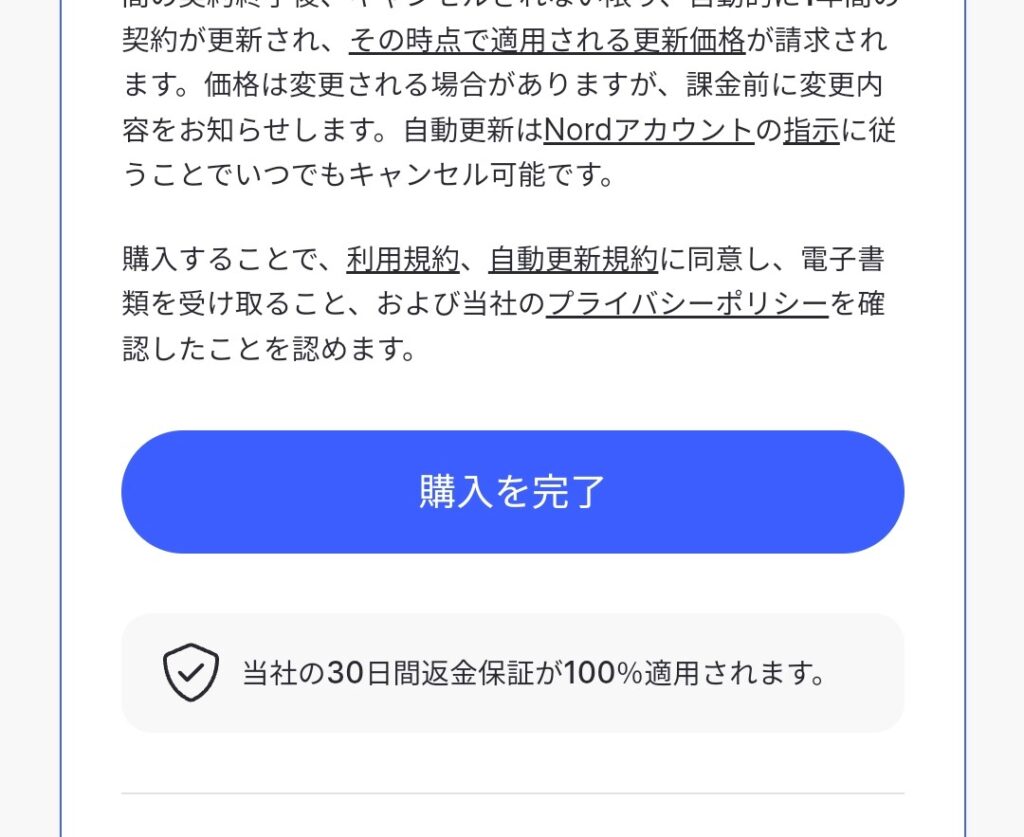
After selecting your payment method, enter the required information and click ‘Complete Purchase’ to finish the process.
Install NordVPN on the Fire Stick.
1. From the Fire Stick home screen, select ‘Search’.
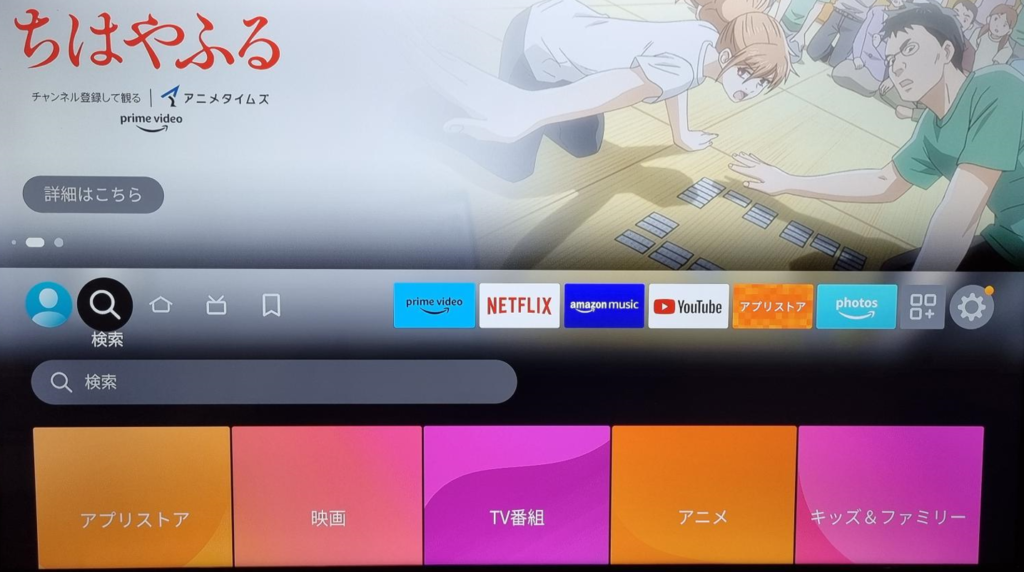
2.On the search screen, type in ‘NORDVPN’ and search.
If you type ‘NORD,’ the app will appear in the suggestions—select it from there.
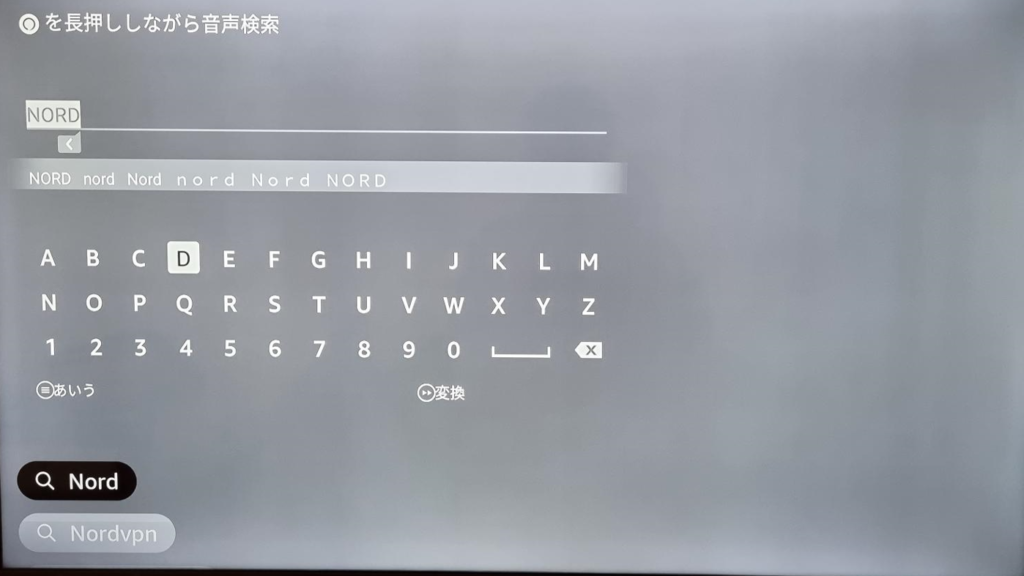
When the NordVPN installation screen appears, proceed with the installation.
Setting of NordVPN
On the TV screen, select the installed NordVPN app.
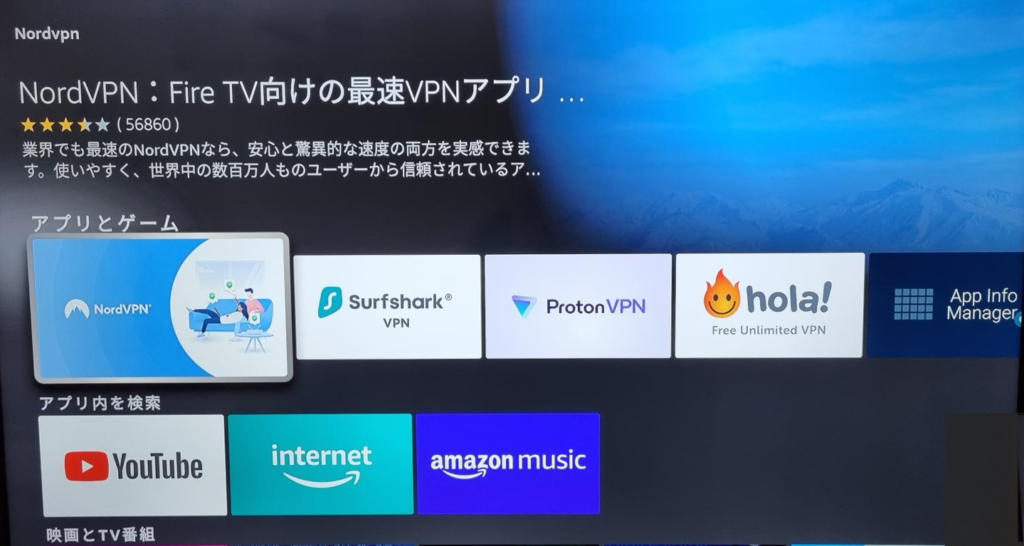
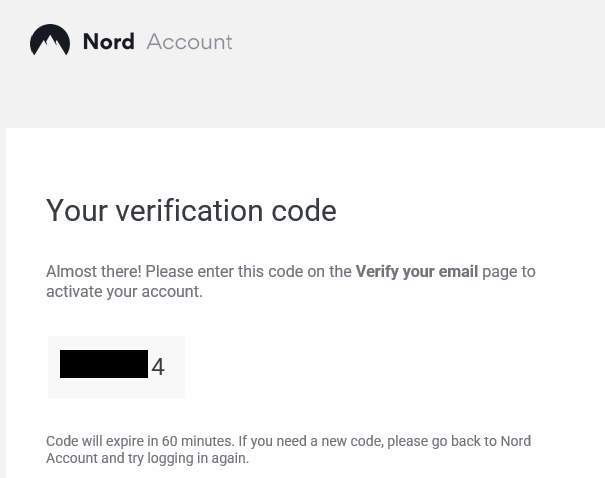
“When the following screen appears, select ‘Approve’.
A 6-digit verification code will be sent to your registered email address. Enter this code on the TV’s verification code input screen within 60 minutes.”
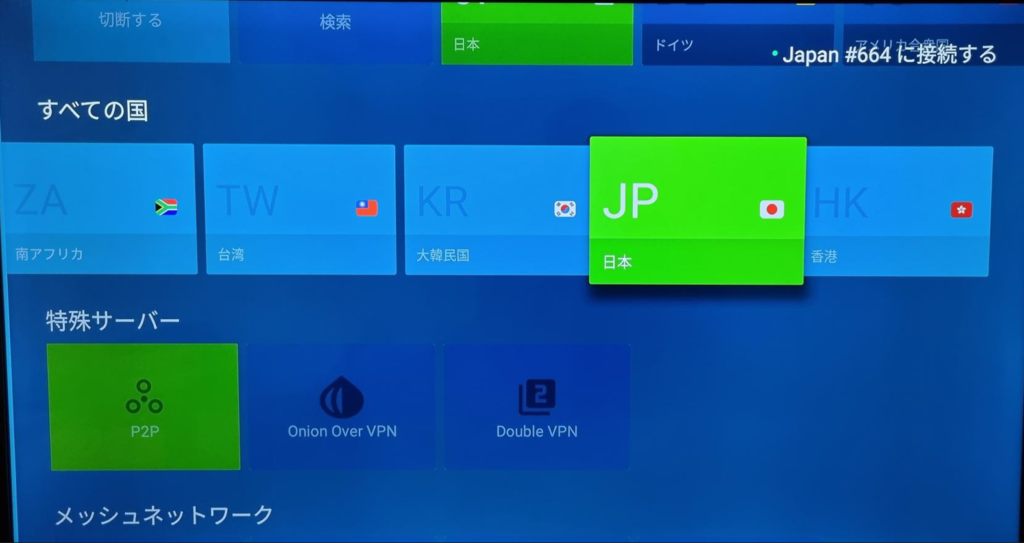
“Once you have logged in, you can select a country. Choose ‘JP (Japan).’
When the indicator turns green, it means you are connected to that country.”
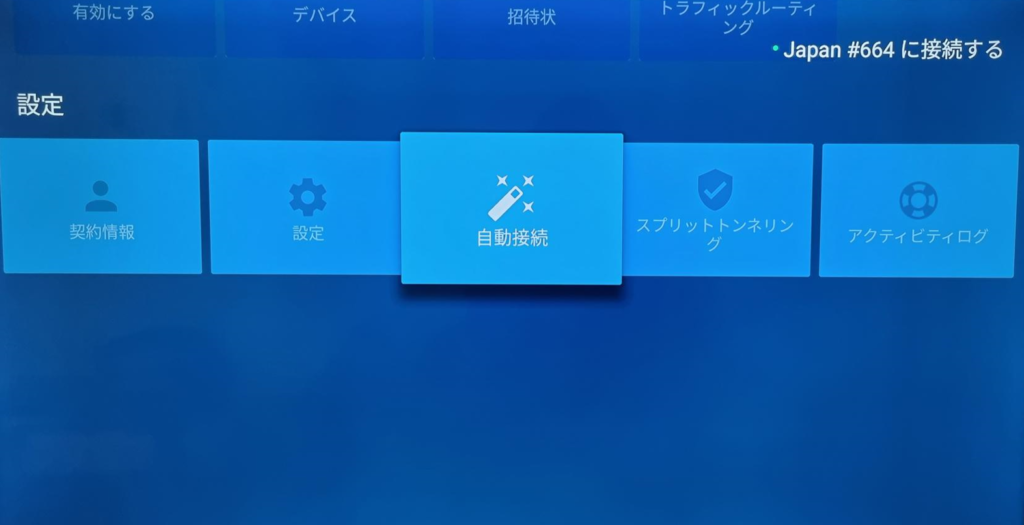
“By default, you need to log in and reconnect every time you turn off the TV, so let’s enable the auto-connect feature.
In the NordVPN app, scroll down and select ‘Settings’ >> ‘Auto-Connect’.”
Install Netflix
Just like with NordVPN, go to the Fire Stick search screen and start typing ‘Netflixr.’ When the correct suggestion appears, select it and proceed with the installation.
Things to Keep in Mind When Using Amazon Prime
Even if you have an Amazon Prime membership with a local Amazon site (such as Amazon.com or Amazon.de), you cannot watch Amazon Prime Video from Amazon.co.jp.
To watch Japanese Amazon Prime Video, you need to have a separate Amazon Prime membership for Amazon.co.jp. Therefore, if you want to use Prime delivery services in your local country and also watch Japanese Amazon Prime Video, you will need to subscribe to both the local Amazon Prime and the Japanese Amazon Prime separately.
まとめ
In this guide, we explained how to watch Japanese TV shows from abroad using an Amazon Fire Stick with a VPN connection.
We recommend NordVPN as the VPN service to use.
- Connection Stability
- Long-term subscriptions offer a lower price (under €5 per month for the Standard Plan).
- Allows multiple devices to be used simultaneously. (Maximum 6 devices)
We actually use NordVPN at our home, and so far, we’ve never experienced a connection drop. Although the main internet service (Telekom) has had outages a few times, we have never had any issues with NordVPN’s connection.
We hope you all enjoy a stable and comfortable experience watching Japanese programs.
\Now On Sale! 72%OFF!!/
30-Day Refund Guarantee!